How it works
From sign-up to your first alert.
An account, one command per server, one rule for notifications – that is all it takes. Here is every step, including what the agent reads on your server, how it updates itself and how you remove it again.
The essentials
One command per server
Create an install token, copy the command, paste it on the server.
No root, no open port
The agent runs as its own user and only talks outbound over HTTPS.
Signed updates
Rolled out in stages, with a return to the previous version if something goes wrong.
01
Create an account
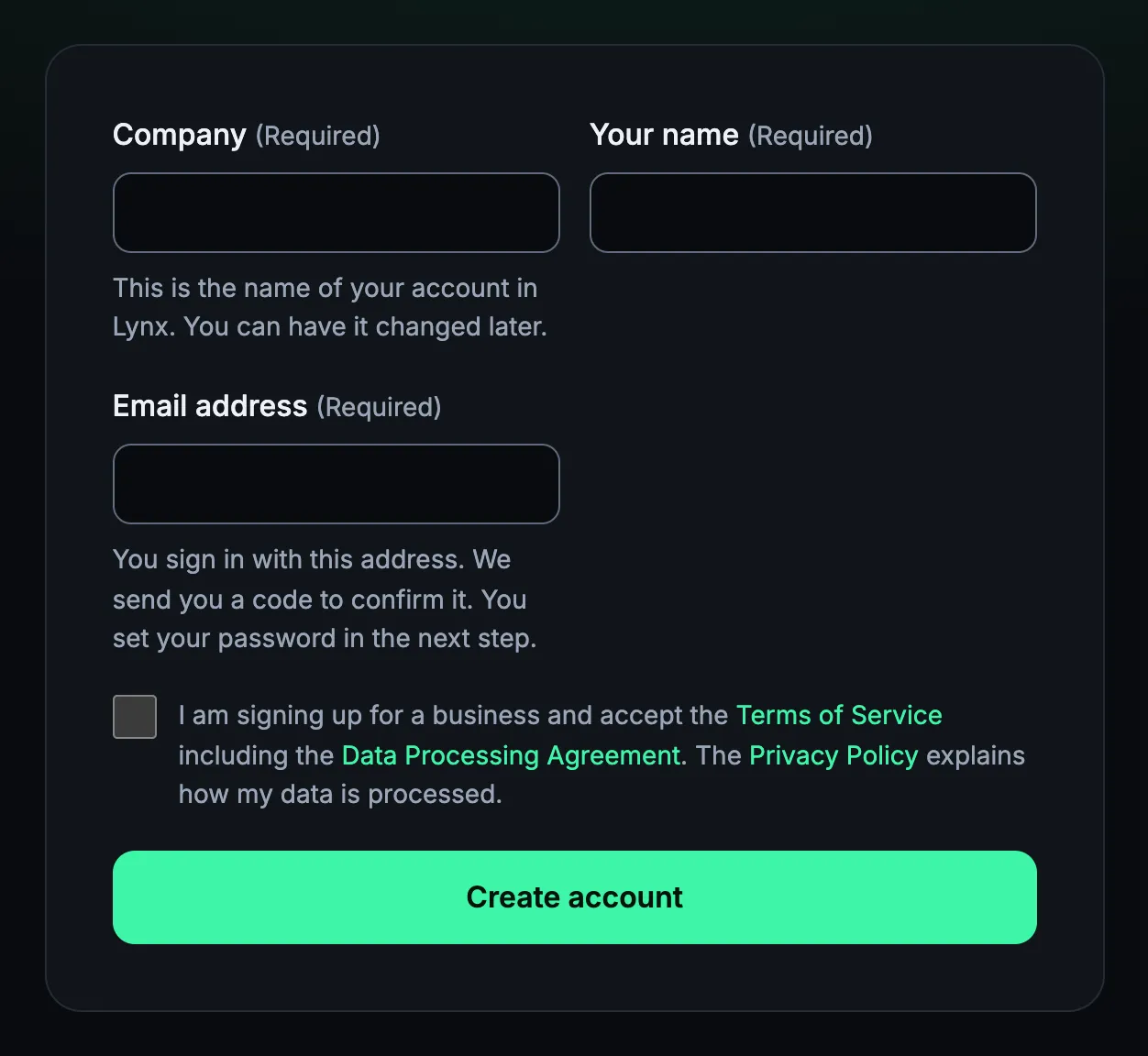
Enter your company, name and email address, confirm the address with a code, set a password – your account is ready, for 7 days with every feature and no payment details.
After you send the form, an email with a code arrives. You enter it on the page that has opened and set a password of at least twelve characters; only then is the account created. The code is valid for 24 hours. You are then signed in and land on a welcome page with the next steps.
During the trial you can monitor up to 10 servers and 50 monitors. Afterwards you book a plan – or do nothing: without a plan monitoring pauses, and 14 days after the trial ends the account is deleted with all its data. Lynx reminds you by email beforehand.
Each email address gets one trial per 180 days. Lynx Heartbeat is meant for businesses, not private individuals.
02
Install the agent
As the owner you create an install token under “Servers”. Lynx turns it into a command – you copy it and paste it on the new server.
The token works once and for 24 hours, and Lynx shows the command exactly once: only its checksum is stored. If you want to know beforehand whether the server is supported, run the installer with --precheck; it changes nothing and needs neither root nor a token.
The installer checks everything that can go wrong before it redeems the token – so a typo costs nothing. Then it creates the user catama-lynx, sets up the service and waits up to 45 seconds for Lynx's first answer. On a test server it was all done in under a minute.
It installs no package. If Apache is running, it enables Apache's status module mod_status, reachable only via 127.0.0.1, and gives the agent read access to the logs of Apache or nginx and to auth.log; both can be left out with an option of the installer (see its --help).
# Check beforehand whether the server is supported – changes nothing
$ curl -fsSL https://lynx-heartbeat.com/install.sh | bash -s -- --precheck

# Install the agent – Lynx shows the command with your token
$ curl -fsSL https://lynx-heartbeat.com/install.sh | sudo bash -s -- --token lynxi1.…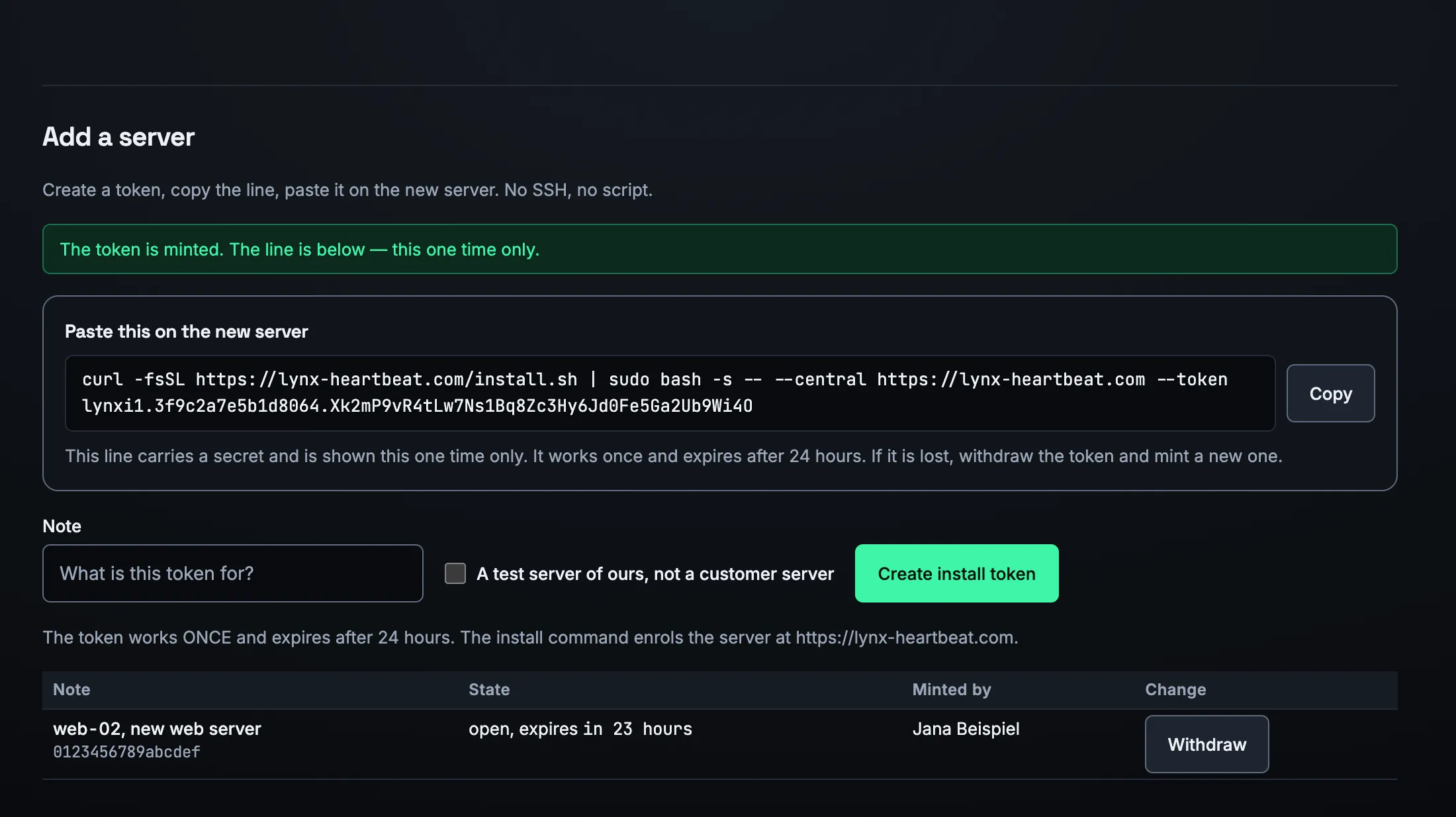
03
Supported systems
Ubuntu 20.04, 22.04, 24.04 and 26.04 with systemd, on amd64 and arm64.
The installer refuses other distributions on purpose – not because they would not work, but because nobody has tested them. An installation is the wrong place for an experiment.
Checks from outside do not depend on this: Lynx checks websites, ports and names on any system that is reachable from the internet.
04
What the agent reads – and what never
The agent reads how the server is doing and what is installed on it. What belongs to your customers, it leaves alone.
It reads the system's metrics, the installed packages, file systems and network addresses, open ports with process and user account, the state of Apache, PHP-FPM and MySQL, certificates and the number of failed logins.
It never sends file contents, command lines or environment variables. For processes only the name leaves the server, for logins only the count – without addresses or user names –, and from log files only counts, no lines and no visitor addresses.
It runs as its own user without a shell and refuses to start as root; the sudo rules the installer creates allow nothing. It opens no port, only talks outbound over HTTPS on port 443 and keeps up to 24 hours of measurements if the connection drops.
05
The first minutes
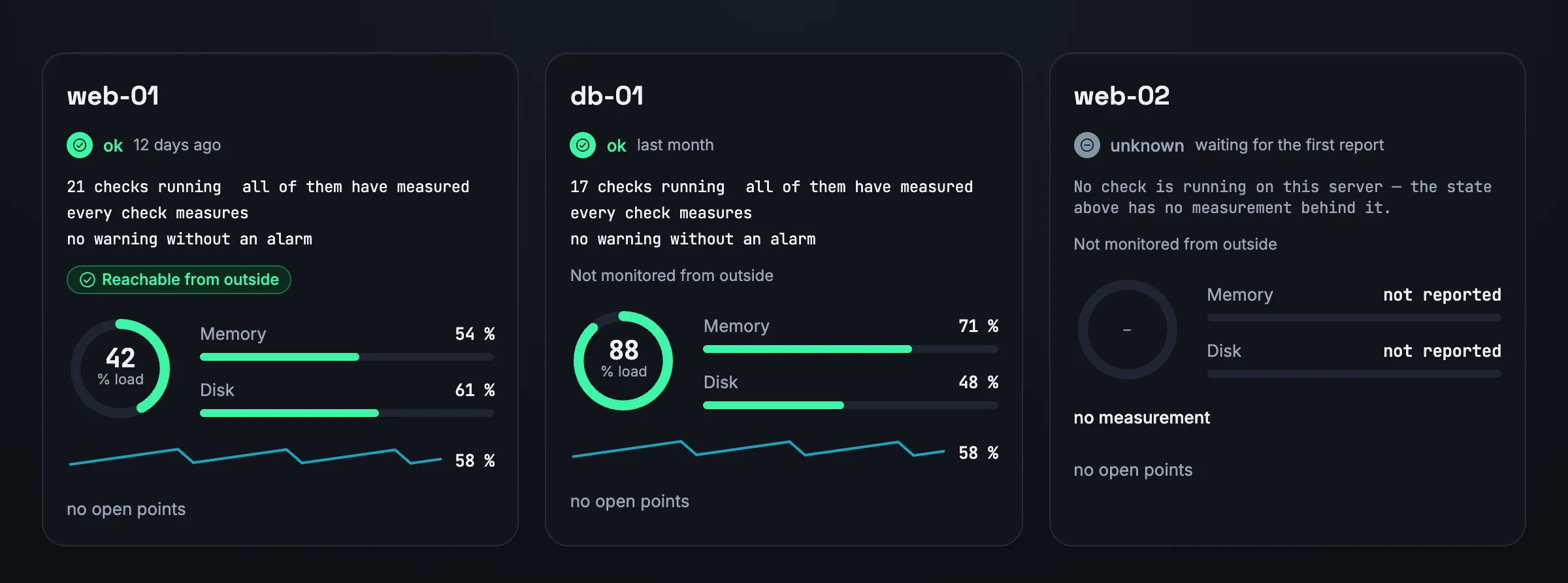
As soon as the token is redeemed, the server appears in the server list – with the note “waiting for the first report” until it reports for the first time.
Lynx creates the checks right away and switches on what can measure on this server: load, memory, swap, disks, ssh and cron always; Apache, nginx, PHP-FPM, MySQL, Redis, backups and logs if the installer finds them.
If the server has a public name with a valid certificate, Lynx also creates an HTTPS monitor from outside. You add further websites under “Monitors” – the welcome page takes you there.
Metrics arrive every minute. The disk forecast needs 24 hours of values, the check against known vulnerabilities the first night.
06
Set up notifications
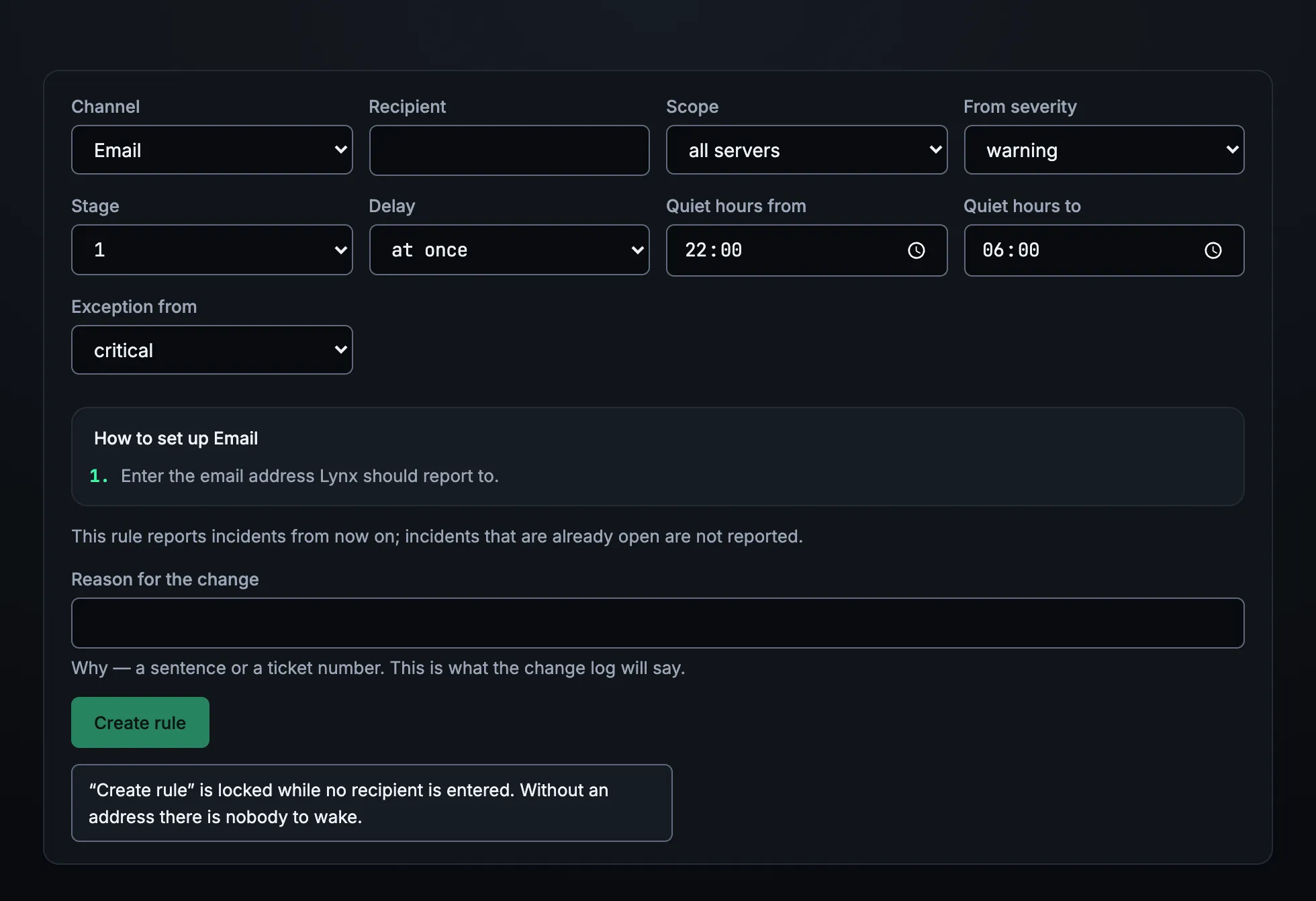
Without a rule Lynx notifies nobody – and tells you so. So the next step is to create a rule under “Notifications”.
A rule needs a channel and a recipient, such as your email address. By default it reports from warning, holds back at night from 22:00 to 06:00 and still lets critical incidents through. A test message shows you straight away whether it arrives.
For a second stage you create another rule: it applies after 15 minutes if nobody has acknowledged the incident by then.
07
Agent updates
The agent keeps itself up to date – switched on from the moment it is installed.
Every new version comes with a manifest signed with Ed25519, and every file must match the SHA-256 checksum in that manifest. Before switching, the agent starts the new file once as a test. It only moves to an older version if a signed manifest explicitly allows it.
New versions go out in stages, wave by wave; agents check once an hour. If a new version starts twice without Lynx confirming it, the agent returns to the previous one by itself.
If you do not want automatic updates, switch them off during installation with --update-manifest none.
08
Uninstall
One command removes the agent completely.
It removes the service, user, sudo rules and read permissions, Apache's mod_status – if the installer switched it on – and the agent's files, and then checks that nothing is left. With --keep-data the collected data stays on the server, with --yes it does not ask.
The server stays in Lynx. Pause its monitoring there or delete it; only the owner can delete it, by typing the server's name.
# Remove the agent completely
$ curl -fsSL https://lynx-heartbeat.com/install.sh | sudo bash -s -- --uninstall
Frequently asked questions
Do I need a credit card for the trial?
No. You test for 7 days with every feature and no payment details. You only book a plan if you want to continue.
How long does installation take?
One command per server. The installer waits up to 45 seconds for Lynx's first answer; on a test server everything was done in under a minute.
Does the agent need root rights?
For the installation, yes – the installer creates the user and the service. The agent itself then runs as its own user without special rights, refuses to start as root, and the sudo rules allow it nothing.
What happens after the trial?
You book a plan, or monitoring pauses. Without a plan the account is deleted with all its data 14 days after the trial ends; Lynx reminds you by email beforehand.
How do I remove the agent again?
With one command: the installer with --uninstall. It removes the service, user, permissions and files and checks that nothing is left. Afterwards you pause or delete the server in Lynx.
More features
Your first heartbeat in a few minutes.
An account, one command per server, one rule – that is all it takes.